When using a Square compatible receipt printer, technical difficulties can sometimes arise, causing disruptions in the workflow. At Winpal, we understand how essential it is for businesses to have their receipt printers running smoothly, and we’re here to provide you with some valuable troubleshooting tips to keep your receipt printer in top condition. Here, we’ll address common issues and share effective solutions that can help you avoid unnecessary downtime.
Ensuring Proper Connectivity
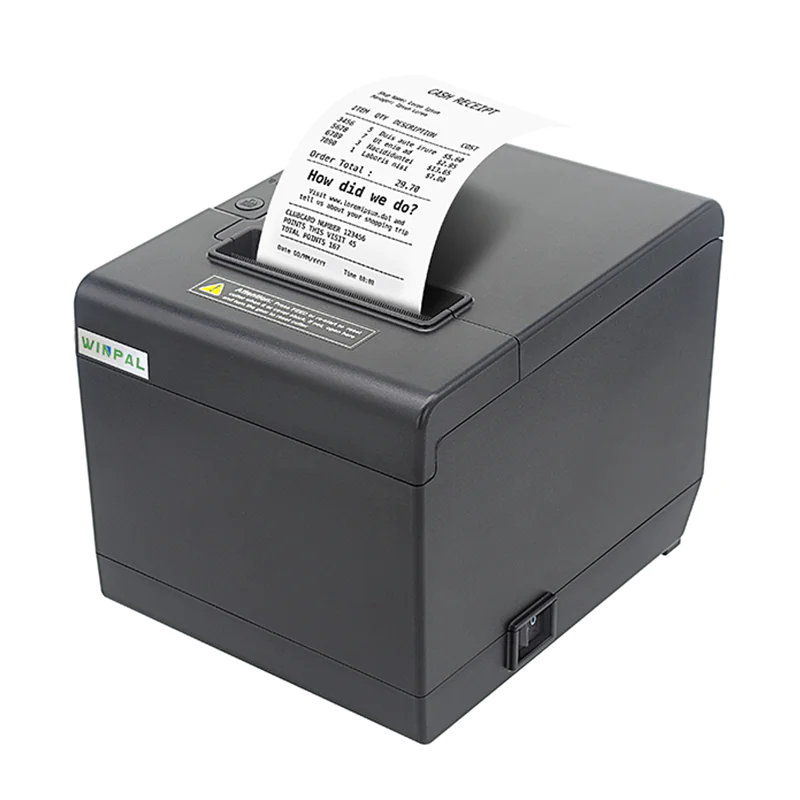
One of the first things to check when troubleshooting a Square compatible receipt printer is the connectivity. Whether you’re using USB, LAN, Bluetooth, or WiFi connections, improper setup or connection can lead to errors during printing. For instance, when you use the USB connection on the Winpal WP-A3 receipt printer, ensure that the cable is securely plugged in and that your device recognizes the printer. If the connection is via Bluetooth or WiFi, make sure your printer is within range and properly paired with the device.
Additionally, a faulty cable or outdated driver can sometimes be the cause of connectivity issues. If the issue persists, you may want to consider updating your printer’s firmware or driver software to ensure compatibility with your device’s operating system.
Checking Printer Settings
Another common issue is incorrect printer settings, which can prevent the receipt printer from functioning as expected. Winpal’s WP-A3 model, for example, supports ESC/POS commands, which is the standard for many POS systems, including Square. Ensure that the print command settings are correctly configured to match the system you’re using. If there’s a mismatch, the printer may fail to print or produce poor-quality receipts.
You should also check the character size settings. The WP-A3 offers different font options, including Font A (12×24 dots) and Font B (9×17 dots), as well as Simplified and Traditional Chinese options. Ensure the correct font size and language are selected based on the type of receipts you want to print.
Handling Paper Jams and Print Quality Issues
Paper jams and poor print quality are often the most noticeable issues with receipt printers. To prevent paper jams, make sure the printer’s paper roll is correctly aligned, with no creases or folds. For the Winpal WP-A3, check that the paper width is 80mm and the print width is 72mm. Using the correct paper roll size will ensure smooth operation.
If you encounter poor print quality, it might be time to clean the printer’s print head. Dust and dirt can accumulate over time, affecting the printer’s performance. Use a soft cloth or cleaning card to gently wipe the print head and ensure clear and crisp printing.
Conclusion
Troubleshooting your Square compatible receipt printer doesn’t have to be a daunting task. By following these simple steps, you can avoid many common issues and keep your receipt printer working efficiently. At Winpal, we are committed to providing high-quality products like the WP-A3 to ensure smooth, uninterrupted transactions for your business. Remember, maintaining proper connectivity, adjusting settings, and performing regular maintenance will help your printer continue to operate at its best. We hope these tips help you keep your Winpal printer running smoothly, minimizing interruptions and improving your overall experience. If issues persist, don’t hesitate to reach out to our support team for further assistance.